
If you make changes to a dish, add new add-on items, or stop offering a product, you need to update the existing products.
This is a step-by-step guide showing how you can make changes to products, categories, and add-on items.
▶ Video guide
1. Log in to ExtendaGO.no with your master user account
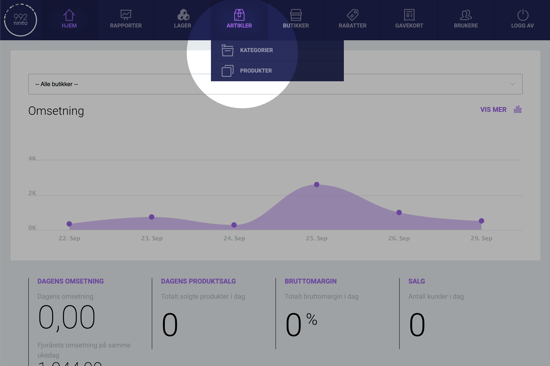
2. Mouse over "Inventory"
If you want to make changes to a product or an add-on item, click Products.
If you would rather make changes to a category or subcategory, click Categories.
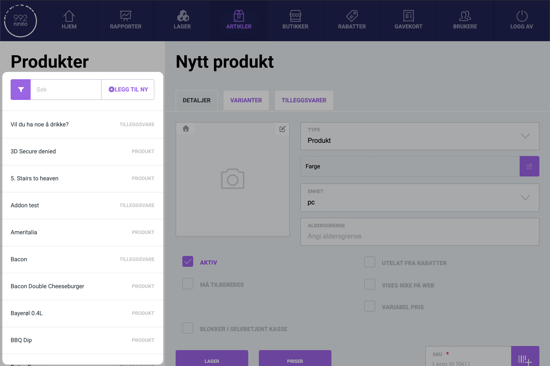
3. Use the search function to find the product you wish to edit
If you are unsure about the name of an add-on, you can visit the online store and select a product that includes the add-on. When you reach the step for choosing add-ons, the name of the add-on will be displayed at the top.
"Something to drink?", "Remove from...", or "Extra cheese?" are common names for add-on items.
4. Making changes to a category
Categories have two tabs: Category details and Products in category.- Under Category details, you can change the parent category, name, and image for the category.
- Under Products in category, you can see which products are included in this category.
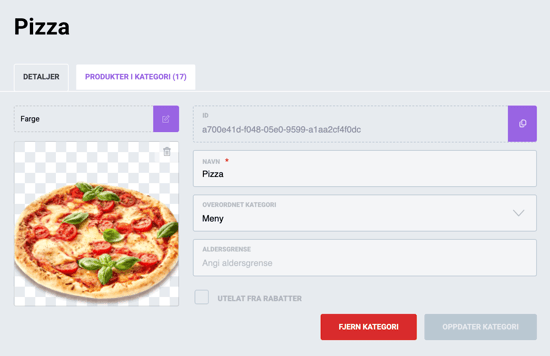
Click on Update category when you are finished making changes.
Want more detailed guidance on categories? See this page.
5. Making changes to a product
Products have three tabs, but we only need Details and Add-on products.- Under Details, you can change the name, product image, prices, category, locations, accounting category, description, and SKU.
- Under Add-on products, you can change which add-ons are available for the product and adjust the quantity restrictions for add-ons.
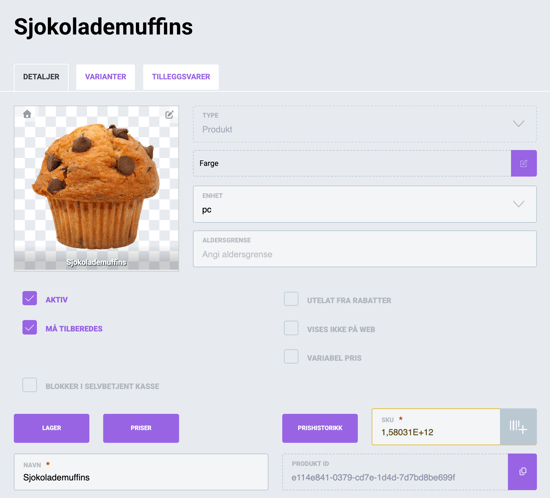
Click on Update product when you are finished making changes.
Want more detailed guidance on products? See this page.
6. Making changes to an add-on
Add-ons have two tabs: Details and Variants.
- Under Details, you can change the name and accounting category for the add-on.
- Under Variants, you can add or remove variants from the add-on, or change the name and price of existing variants.
The name of the add-on is displayed as the title, for example "Something to drink?"
The variants are the available options within the add-on, such as "Coca-Cola" or "Fanta".
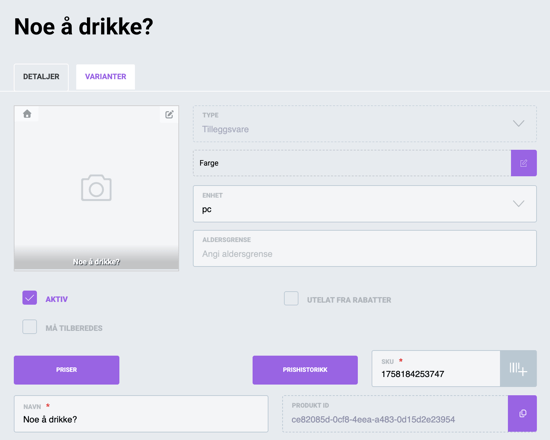
Click on Update product when you are finished making changes.
Want more detailed guidance on add-ons? See this page.
Questions? Contact us via
support@992.no