
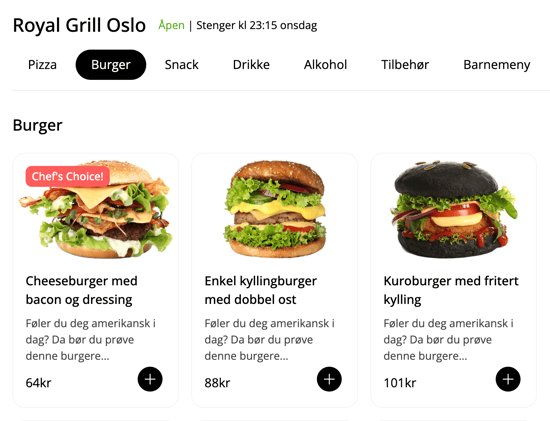
Products are the items you offer. When you add a new product, it becomes visible to your customers, such as the burgers in this example:
▶ Video guide
1. Log in to ExtendaGO.no with your master user account
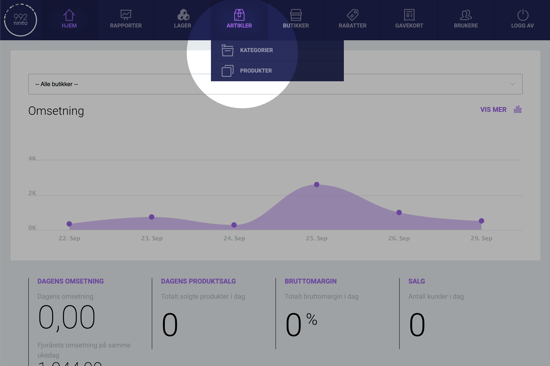
2. Mouse over "Inventory" and press "Products"
3. Press "Add new"
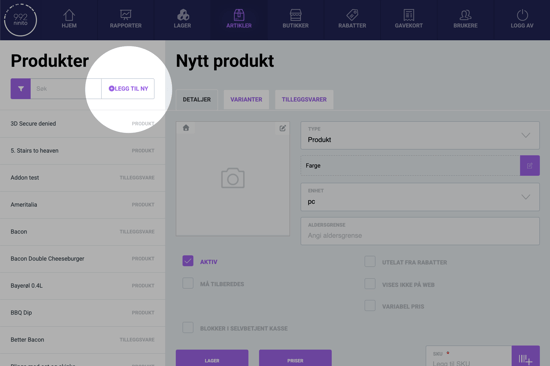
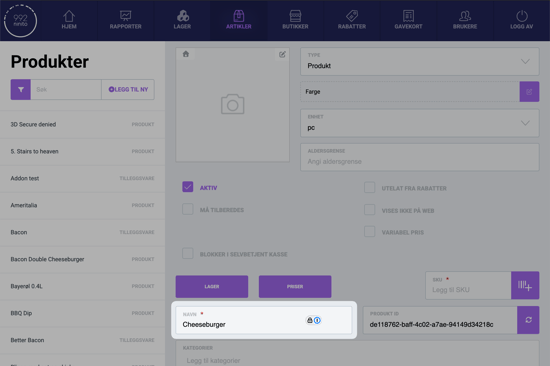
4. Give the product a name
In this example we name the product "Cheeseburger":
5. Give the product a price
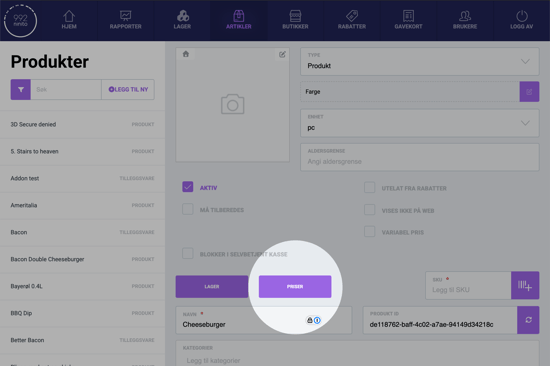
Press "Pricing":
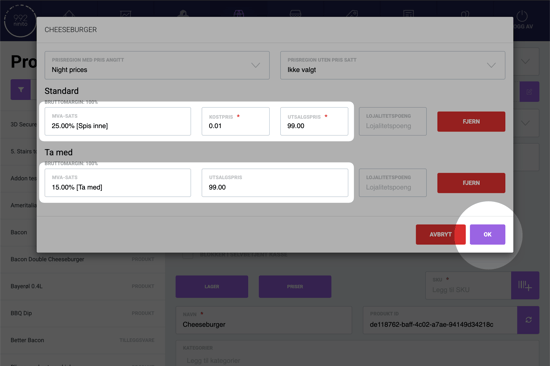
In the window, we first click Add default and Add to go, and then fill in the correct prices and rates. In Norway, 25% is usually used for dine-in, and 15% for take-away, but VAT rates may vary depending on product type and place of sale.
Cost price is mandatory. If you don't want to provide a cost price, enter 00.01.
When you're finished, click OK.
6. Add SKU-code
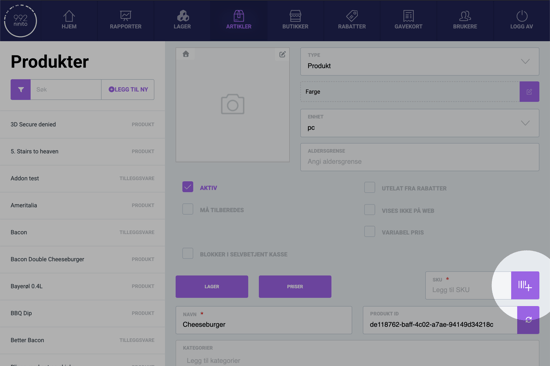
SKU-code is mandatory. If your product has a barcode that you want to scan, you can enter the barcode here. If the product does not have a barcode, click the purple button to generate a random SKU code.
7. Add a description
In the largest field labeled Description, enter a description of the product. It should be short and simple, and inform the customer about the product.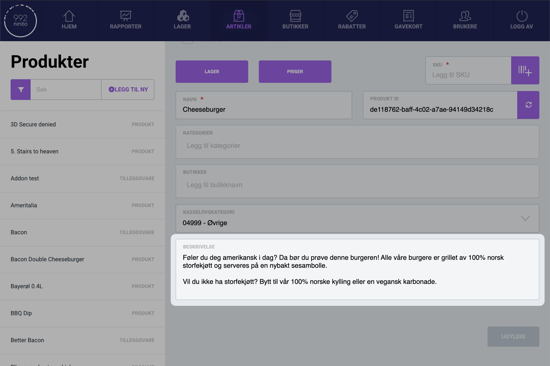
8. Add a product image
Click the Edit-icon in the image frame:
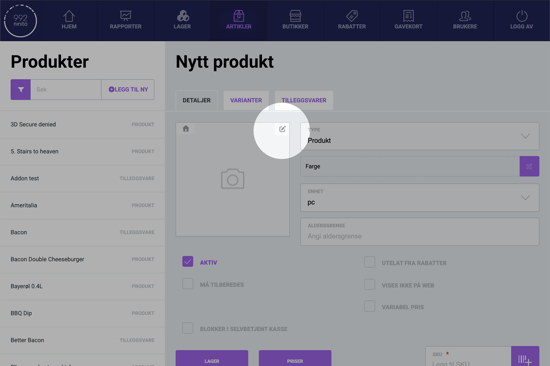
Upload a product image, and click Close when you are finished.
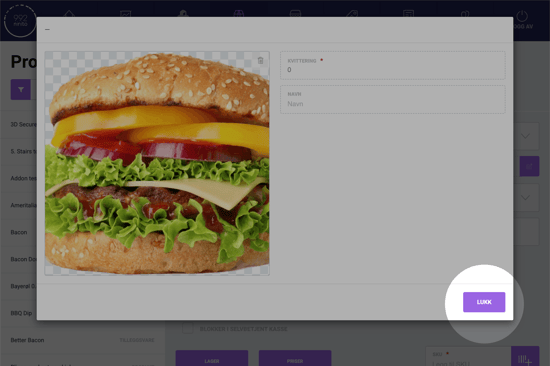
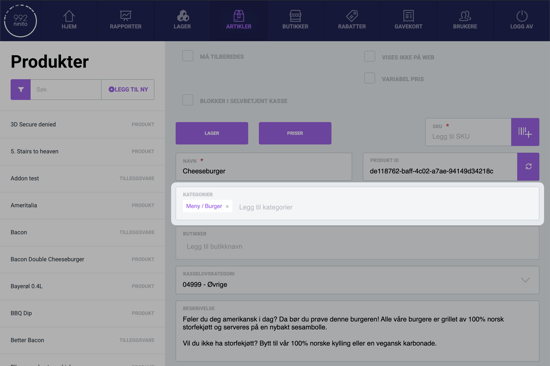
9. Choose a category for the product
Click on the field labeled Categories, and choose which category the product should belong to. In this field, you can start typing and then select the correct category from a drop-down menu.
10. Choose which stores show the product
In the field labeled Shops, you can choose which locations the product should be displayed for. If you only have one location, or if you want the product to be shown everywhere, this field should be left blank.
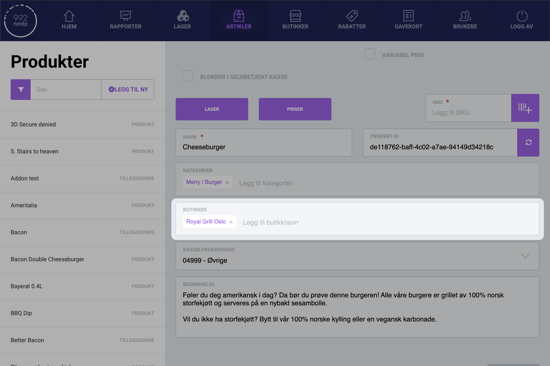
11. Choose accounting category
For accounting purposes, it is important to select the correct accounting category. Click on the field labeled Accounting category and choose the correct category from the list.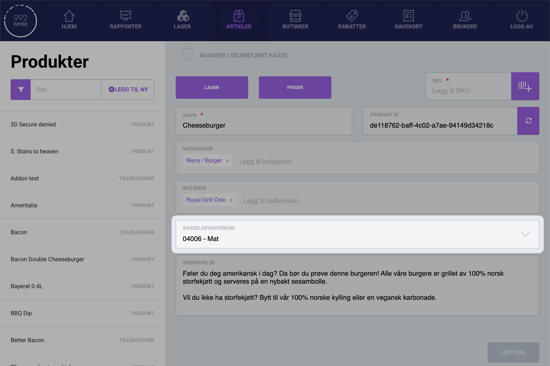
To comply with Regnskapsloven, it is very important to select the correct accounting category. If you are unsure which one to use, you can consult your accountant.
12. Save
Now that you are finished, you can go to the bottom of the page and press Create product.
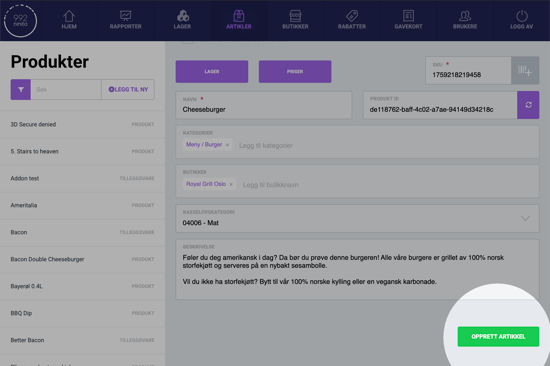
You must always remember to click the green button to save every time you create something new or make changes. If you switch to another product without saving, you will lose your changes.
support@992.no