
Add-ons allow customers to customize the dishes they purchase. With add-ons, you can offer the customer:
- Drinks, sauces, or side dishes in addition to the main course
- Removal of unwanted ingredients
- Addition of extra ingredients
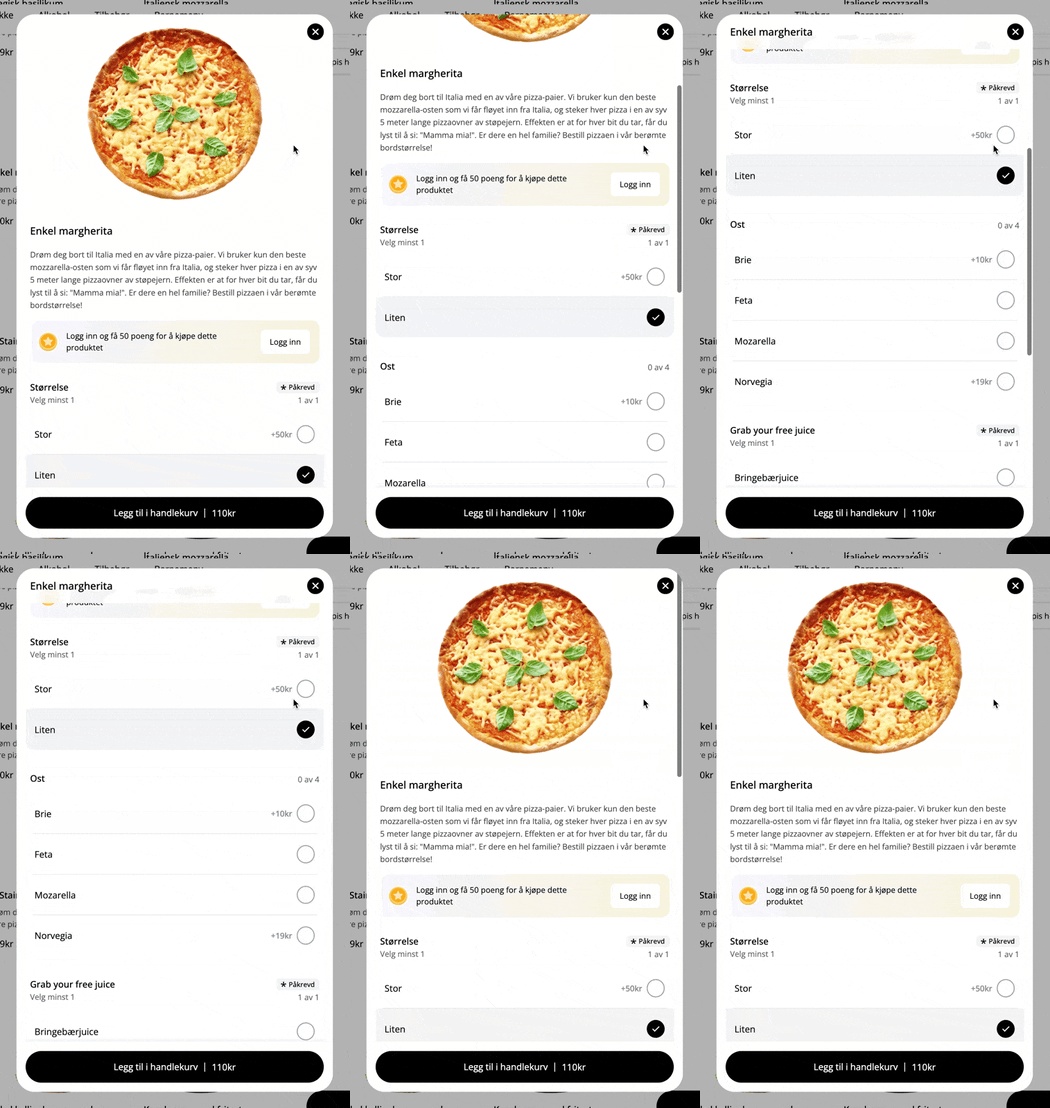
In the example below, we use add-ons to let the customer choose the pizza size, type of cheese, and which drink they want:
▶ Video guide
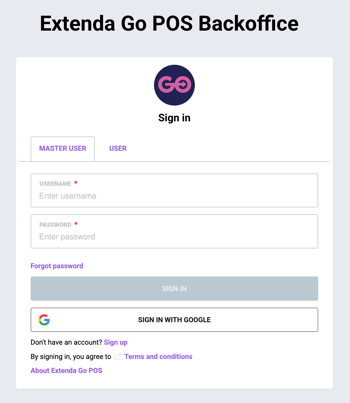
1. Log in to ExtendaGO.no with your master user account
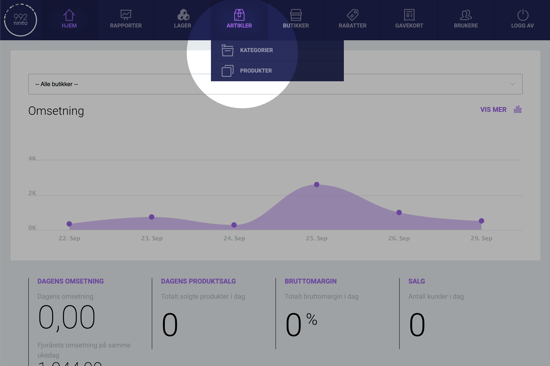
2. Mouse over "Inventory" and click on "Products"
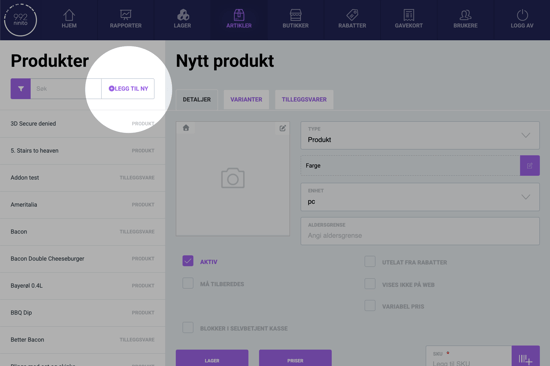
3. Click "Add new"
4. Under "Type", choose "Addon"
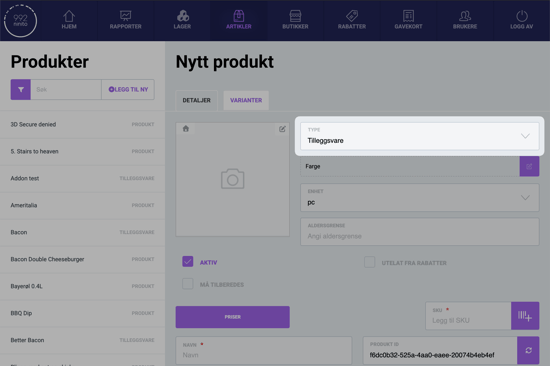
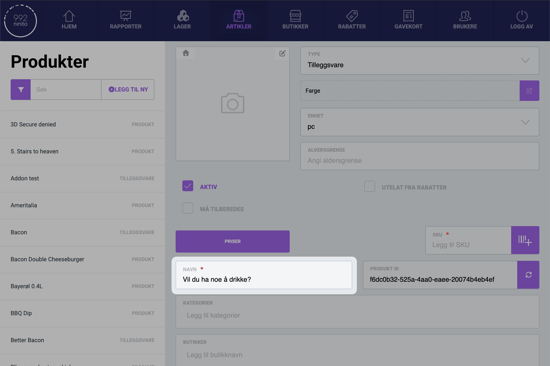
5. Enter a name for the add-on
This could be "Would you like something to drink?", "Extra sauce?", or "Remove from pizza".
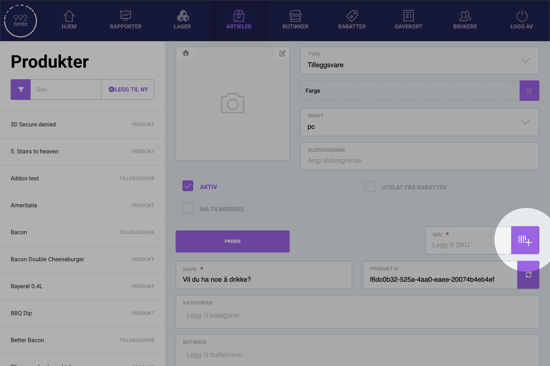
6. Add SKU-kode
SKU code is mandatory. Click this purple button to automatically generate a SKU code.
7. Choose accounting category
For accounting purposes, it is important to select the correct accounting category. Click on the field labeled Accounting category and choose the correct category from the list.
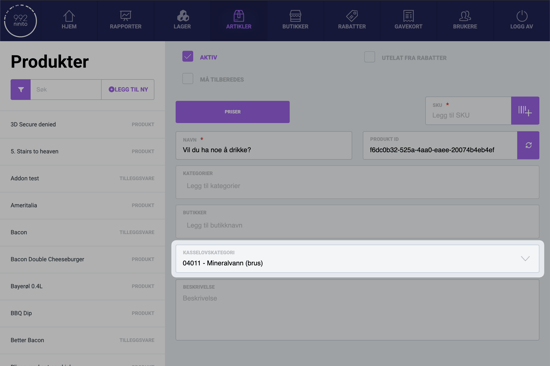
To comply with Regnskapsloven, it is very important to select the correct accounting category. If you are unsure which one to use, you can consult your accountant.
8. Click on "Variants"
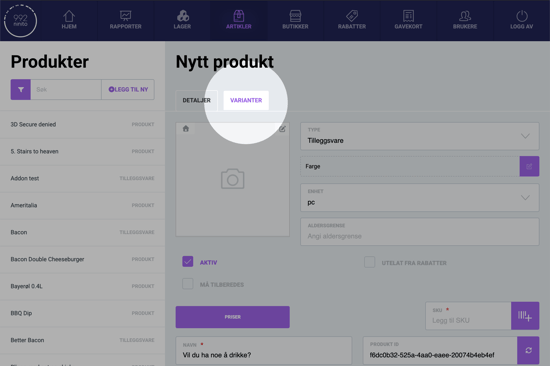
9. Add the variant choices for the add-on
Here we enter the possible options for the add-on item. First, we choose a name for a variant, in this example "Coca-Cola":
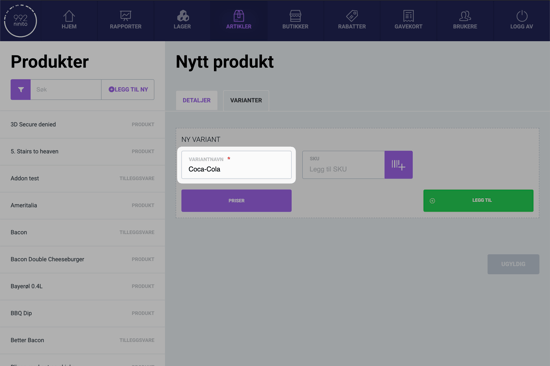
10. Add the price of the variant
Click on Pricing: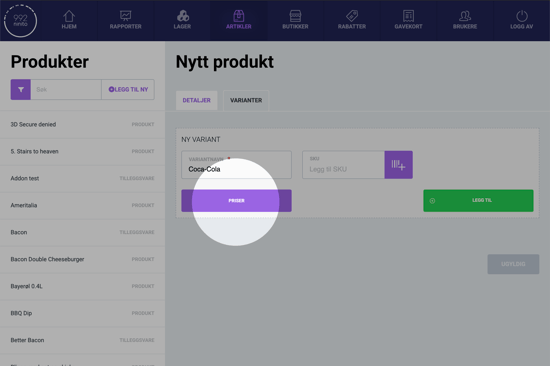
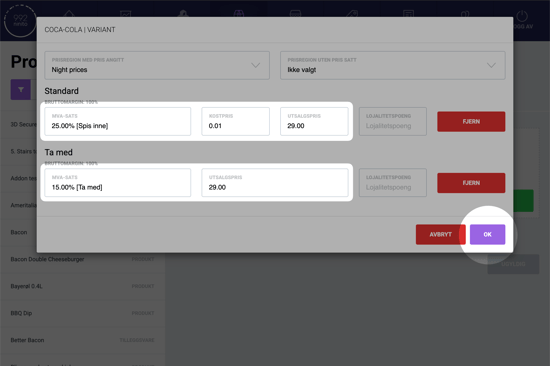
In the window, we first clock Add default and Add to go, and then fill inn the correct prices and rates. In Norway, 25% is usually used for dine-in, and 15% for take-away, but VAT rates may vary depending on product type and place of sale.
Cost price is mandatory. If you don't want to provide a cost price, enter 00.01.
When you're finished, click OK.
11. Click on "Add"
Once you have entered the name, price, and VAT rates for a new variant, click Add.
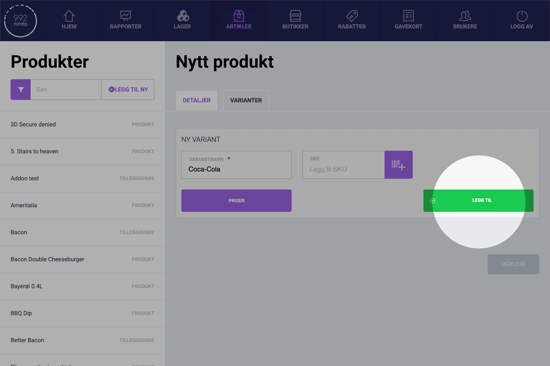
When you click Add, the new variant is added to the list. You can repeat steps 9 to 11 to add more variants for this add-on item.
12. Save
When you are finished adding variants, click Create product to save the add-on product.
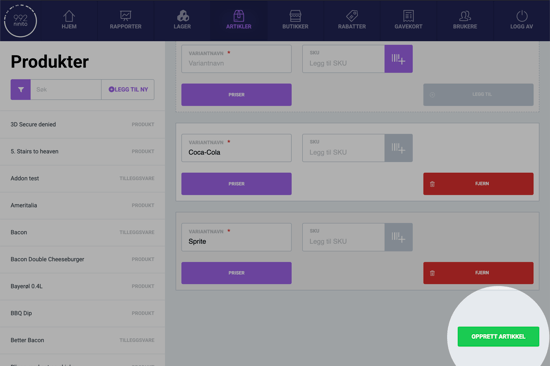
You must always remember to click the green button to save every time you create something new or make changes. If you switch to another product without saving, you will lose your changes.
13. Connect the add-on to a product
Now that we have created the add-on item, we need to link it to the product where it should be displayed.
Hover the mouse pointer over Inventory and click on Products:
14. Choose the product from the list
Here you select the product that the add-on is to be linked to.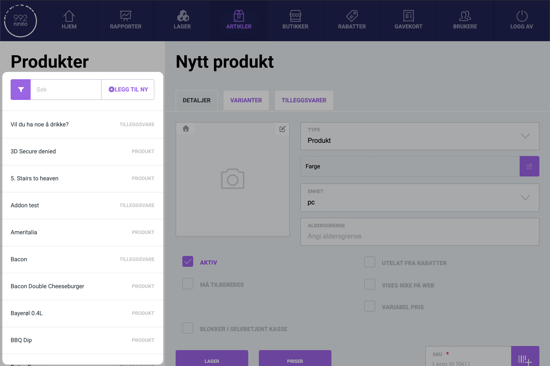
15. Click on "Add-on products"
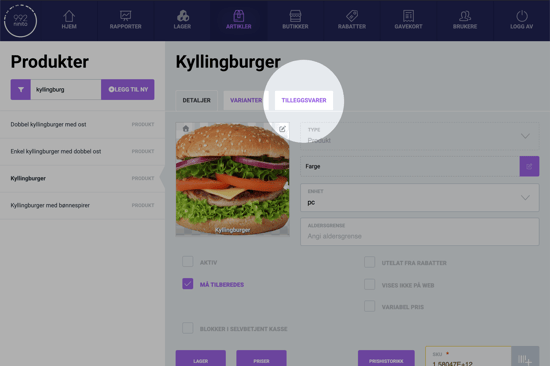
16. Select the add-on item
In the field labeled Search to add new add-ons, select the add-on item you just created.
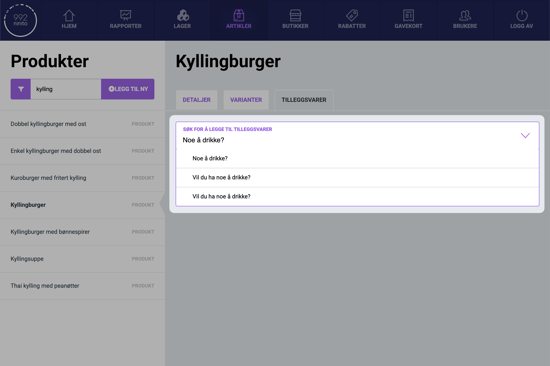
17. Set restrictions for the add-on item
Now we need to set restrictions for the add-on. Here you can choose:
- Whether a choice should be mandatory
- Whether a variant should be preselected
- How many of each add-on item can be ordered
- How many add-on items can be ordered in total
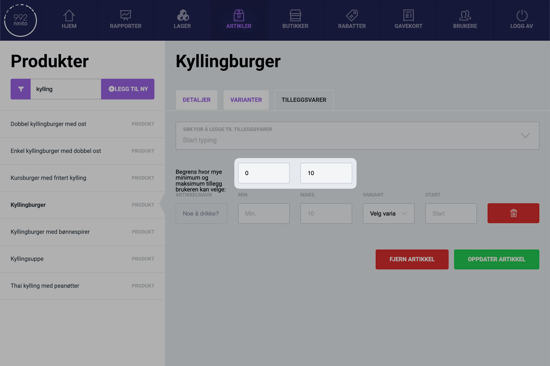
In the first two fields, you can define the minimum and maximum total number of add-on items. In this example, we select 0 in the first field, since it should not be mandatory to choose add-on items. Then we select 10 in the second field, so the customer can choose to order many add-on items.
Then we select the minimum and maximum number for the "Something to drink?"-add-on. Again, we choose 0 in the first field, since drinks are not mandatory, and 10 in the second field.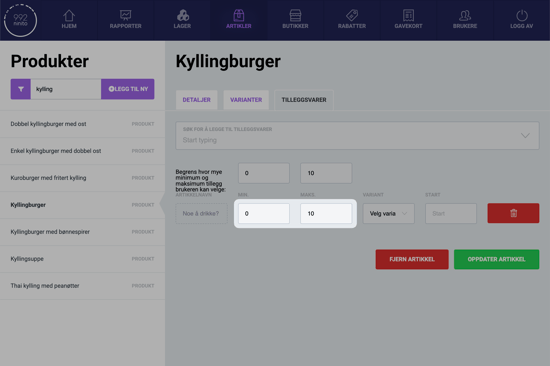
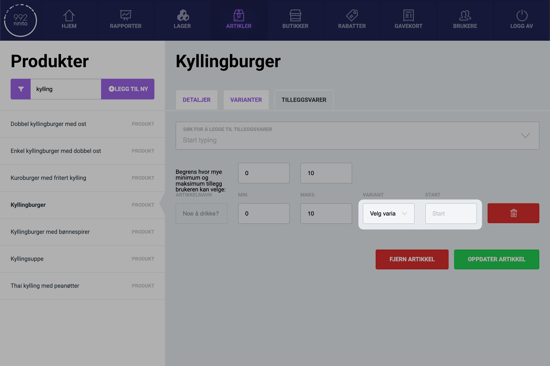
In the last two fields, you can decide whether a variant should be preselected. If you wanted 1 Coca-Cola to be preselected, you would choose Coca-Cola in the first field and 1 in the second field.
In our example, we do not want to preselect for the customer. Therefore, we leave the first field on Select variant, and leave the second field blank.
18. Save
Once you are finished, you can save your changes by clicking Update product at the bottom of the page.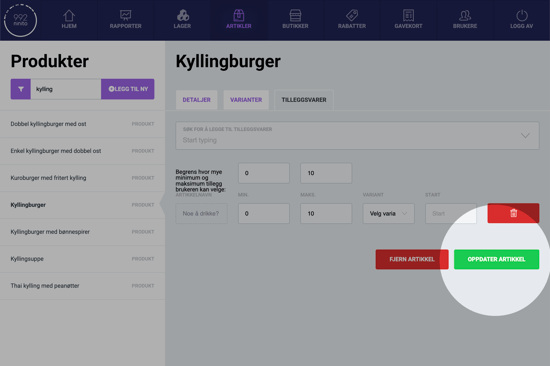
Questions? Contact us via
support@992.no