
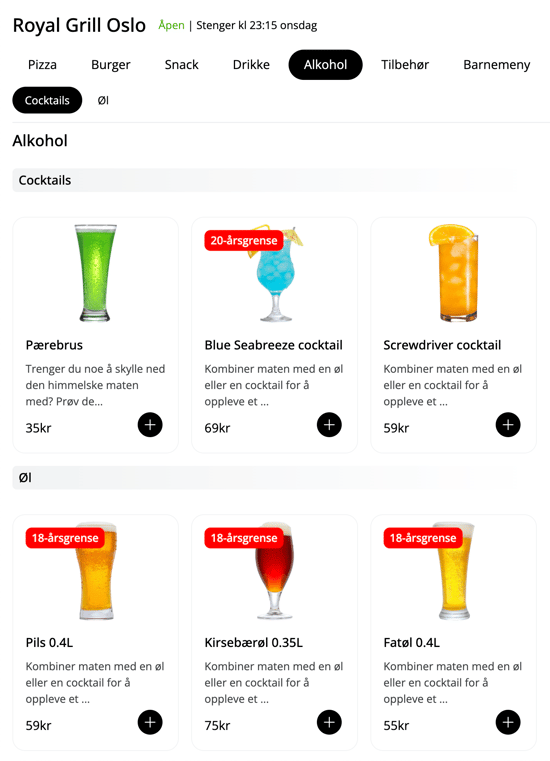
Subcategories make it easier to navigate categories with many products. In the example below, you can see that the products in the "Alcohol" category are further sorted into "Cocktails" and "Beer":
▶ Video guide
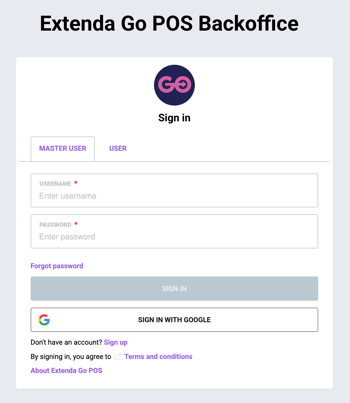
1. Log in to ExtendaGO.no with your master user account
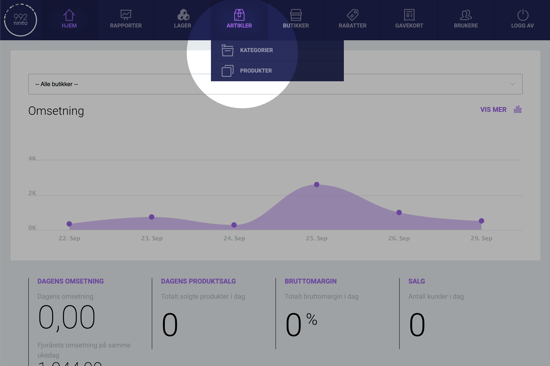
2. Mouse over "Inventory" and click on "Categories"
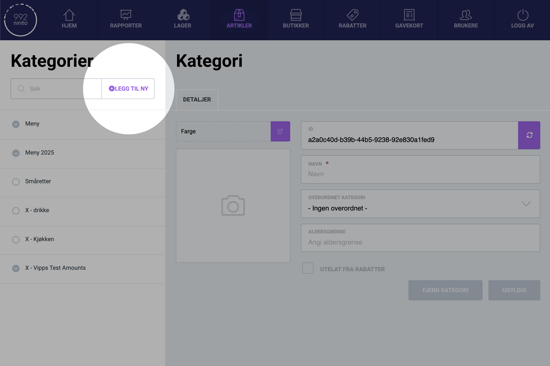
3. Click "Add new"
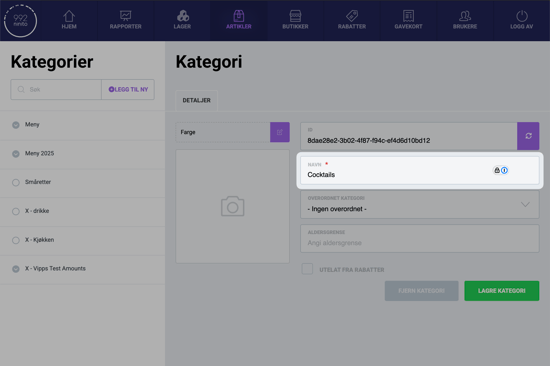
4. Enter a name for the subcategory
In this example we name the subcategory "Cocktails":
5. Choose parent category
Here we choose which category this subcategory should belong to. In this example, the subcategory "Cocktails" should be placed under the category "Alcohol":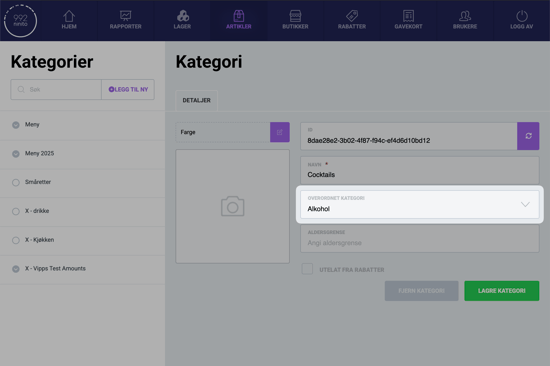
6. Save
Now that you are finished, you can click Save category at the bottom of the page.
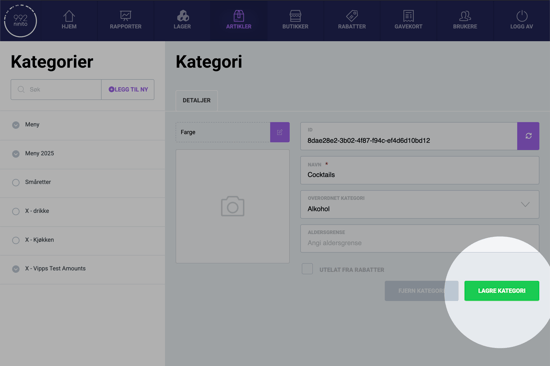
You must always remember to click the green button to save every time you create something new or make changes. If you switch to another category without saving, you will lose your changes.
Questions? Contact us via
support@992.no